
Document folders have a way of becoming mysterious. At first, everything looks manageable. Then a few months or years pass and you end up with something like this:
scan_0021.pdf
document.pdf
document (1).pdf
report_final.docx
report_final_v2.docx
budget.xlsx
presentation2.pptx
notes.txt
letter_new.pdf
The problem is that their names tell you very little about what they actually contain. You can open each document one by one, figure out what it is, rename it, decide where it belongs, create the right folders, and move it manually.
For ten files, that is fine. For hundreds or thousands, it becomes a project.
AI File Sorter can approach the problem differently: instead of relying only on filenames and extensions, it can analyze the text inside supported documents and use that information to suggest clearer filenames and meaningful categories.
And if you use a local AI model, the documents can be analyzed entirely on your own computer.
Why documents are difficult to organize automatically
Traditional file sorting works well when filenames already contain useful information.
For example:
2026_invoice_software.pdf
2025_tax_return.pdf
project_budget.xlsx
network_migration_plan.docx
A simple rule-based tool can make reasonable guesses about those files. But real document folders often look more like this:
scan0004.pdf
download.pdf
file_1732.pdf
doc_final.docx
Book1.xlsx
Presentation1.pptx
The extension tells us what kind of file it is, but not what the document means.
invoice.pdf, employment_contract.pdf, and research_paper.pdf are all PDFs.
Putting all three into a folder called PDF technically organizes them by file format, but probably not in a way that helps very much.
The more useful distinction is semantic:
Finance/
Employment/
Research/
That requires looking beyond the extension.
Using document content instead of just filenames
AI File Sorter can extract and analyze text from supported document formats, including:
- DOCX
- XLSX
- PPTX
- ODT
- ODS
- ODP
- common text formats
Instead of asking only:
What can I infer from this filename?
the app can also use the contents of the document when generating suggestions.
A file called:
scan_0021.pdfmight contain a letter about tax residency.
A more useful suggested filename could therefore be:
2024_tax_residency_letter.pdfThe same content can also help determine where the document belongs.
For example:
Documents/
└── Finance/
    └── Tax/
        └── 2024_tax_residency_letter.pdf
This is particularly useful for folders containing documents accumulated from email attachments, downloads, scanners, cloud exports, old backups, or several different computers.
A simple example
Imagine a folder containing these files:
Documents/
├── scan_0021.pdf
├── file492.pdf
├── report_final2.docx
├── Book1.xlsx
├── slides-new.pptx
├── contract.pdf
├── notes.txt
└── statement_aug.pdf
The filenames provide relatively little context.
After analyzing the documents, useful suggestions might look more like:
Documents/
├── Finance/
│   ├── Banking/
│   │   └── august_bank_statement.pdf
│   └── Budget/
│       └── 2026_project_budget.xlsx
│
├── Legal/
│   └── apartment_lease_agreement.pdf
│
├── Work/
│   ├── Reports/
│   │   └── quarterly_infrastructure_report.docx
│   ├── Presentations/
│   │   └── network_migration_presentation.pptx
│   └── Notes/
│       └── migration_planning_notes.txt
│
└── Personal/
    └── 2024_tax_residency_letter.pdf
The exact result depends on the contents, the selected model, your categorization settings, and any category restrictions you configure. The important difference is that the organization can now be based on what the documents are about, rather than simply what file extension they use.

A typical document folder may contain useful files whose filenames provide very little information about their contents.
Step 1 - Select the folder you want to organize
Start by choosing a folder containing the documents.
This might be:
DocumentsDownloads- a folder exported from cloud storage
- an external drive
- an old backup
- a collection of work or study documents
You do not necessarily have to organize the entire directory at once.
If you want to concentrate specifically on documents, AI File Sorter provides a document-only mode that limits the run to supported document files. This is useful when a folder also contains images, installers, archives, videos, or other files that you do not want to process during the same run.
Step 2 - Enable document analysis
Document analysis allows AI File Sorter to use extracted document text when generating categorization and filename suggestions. This is what makes the process different from simply sorting files according to their extensions.
Consider these three files:
document1.pdf
document2.pdf
document3.pdf
They could contain:
document1.pdf -> employment contract
document2.pdf -> electricity invoice
document3.pdf -> academic research paper
A filename-based system sees three PDFs. Content analysis sees three documents with completely different purposes. That additional context can make both categorization and renaming considerably more useful.
A note about scanned PDFs
There is an important distinction between a PDF containing extractable text and a PDF that consists only of scanned images. AI File Sorter's document analysis works with document text. It should therefore not be assumed that every image-only scanned PDF can be understood in the same way. If a scanned document already contains an OCR text layer, that text may be available for analysis. A PDF consisting purely of page images is a different case. In other words, do not treat "PDF support" as meaning automatic OCR of every scanned document. This feature is planned for a future release.

Document-only processing lets you concentrate on supported documents without reorganizing unrelated files in the same folder.
Step 3 - Decide how specific you want the categories to be
AI File Sorter provides two general categorization styles:
- More Refined - gives the AI more room to create specific categories based on the individual files it sees
- More Consistent - encourages a smaller, more repeatable set of categories across the whole folder
For a large mixed document archive, More Consistent can be a useful starting point because it puts more emphasis on keeping the folder structure predictable.
You might get a structure such as:
Documents/
├── Finance/
├── Personal/
├── Work/
├── Education/
└── Legal/
With More Refined, the result may become more detailed and file-specific:
Finance/
├── Banking/
├── Invoices/
└── Tax/

Work/
├── Reports/
├── Presentations/
├── Meetings/
└── Technical/

Education/
├── Research/
├── Courses/
└── Certificates/
Neither approach is universally better. Use More Consistent when you want a tidy structure that is easier to scan and reuse. Use More Refined when you would rather let the app describe the files more specifically, even if that creates a wider variety of categories. The right choice depends on whether you prefer predictable grouping or more detailed separation.
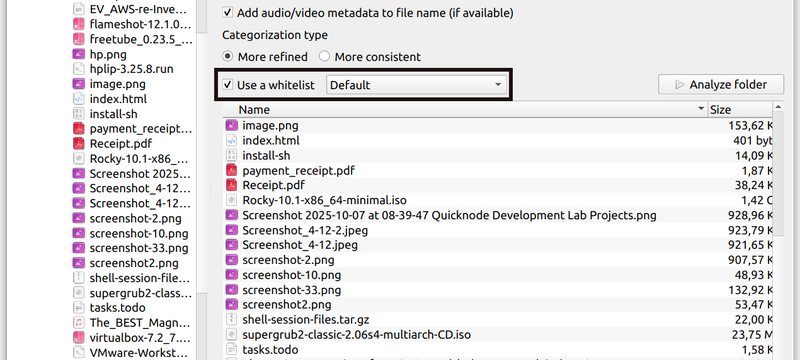
Step 4 - Use whitelists when you already know your structure
Sometimes you do not want AI to invent categories at all. Suppose you already organize documents like this:
Finance
Legal
Personal
Work
And within Finance you want only:
Banking
Invoices
Tax
While Work should contain only:
Meetings
Projects
Reports
Technical
AI File Sorter's category whitelists can constrain categorization to the structure you define. That changes the question from:
What category should this document have?
to:
Which of these allowed categories best matches this document?
This can be particularly useful for repeated cleanup jobs where consistency matters more than discovering new categories. Recent versions also allow individual main categories to have their own permitted subcategories, so unrelated sections of your file structure do not need to share one global subcategory list.
For a deeper explanation, see Whitelists: customize how your files are categorized.
Step 5 - Let AI suggest clearer filenames
Categorization is only half of the problem. Even a perfectly organized folder is irritating to use if it contains:
scan0001.pdf
scan0002.pdf
scan0003.pdf
Document content can also be used to suggest human-readable filenames. For example:
scan0001.pdfcould become:
employment_confirmation_letter.pdfwhile:
document-final.pdfmight become:
network_upgrade_proposal.pdfand:
Book1.xlsxcould become something closer to:
2026_department_budget.xlsxThe suggestions are not applied automatically. They go through the review process first. However, auto-approval is available in the File Explorer extension for Windows, and is likely coming in one of the future versions of AI File Sorter. There is also a rename-only workflow if you want clearer document names without reorganizing the folder structure.
Step 6 - Review everything before changing your files
AI is useful for interpreting documents, but it is not infallible.
A document could reasonably fit into several categories. A proposed filename might be technically correct but not match your preferred terminology.
That is why AI File Sorter separates analysis from file modification.
After analysis, the proposed changes are presented for review.
You can inspect:
- the original file
- suggested category
- suggested subcategory
- suggested filename
- proposed destination
Current versions also provide file previews in the review window, making it easier to check a suggestion without constantly switching to another application.
You can then approve, edit, or skip individual suggestions before applying anything.
For example, the AI might suggest:
Finance / Documentswhile you prefer:
Finance / TaxYou can simply change it during review. The AI provides the first pass, and you make the final decision.

Suggestions are presented for review before files are moved or renamed. Categories and filenames can be edited or skipped.
Step 7 - Use a dry run when dealing with important folders
When testing a new organization scheme, a dry run can be a useful precaution. AI File Sorter's preview-only mode shows the planned source and destination paths before performing the actual moves. Conceptually, you might see:
FROM:
Documents/scan_0021.pdf

TO:
Documents/Personal/2024_tax_residency_letter.pdf
or:
FROM:
Documents/Book1.xlsx

TO:
Documents/Finance/Budget/2026_project_budget.xlsx
This gives you an opportunity to inspect the proposed folder structure before modifying the directory.
If you are deciding whether document analysis should use a local model or a remote provider, see Local AI vs Remote AI for Organizing Documents.
What about mistakes?
An AI-based categorization system may not classify every ambiguous document exactly the way you would. Consider a document containing the budget for a software project.
Should it go under:
Finance/or:
Work/Projects/Both answers could be reasonable. The correct answer depends on your own filing system. That is why a useful AI file organizer should not simply make irreversible decisions and disappear. AI File Sorter allows you to review the proposed changes and provides persistent Undo for the latest applied sort, allowing the last operation to be reverted even after the application has been closed.
A practical document workflow
For a large unorganized document collection, a simpler workflow could be:
- Choose a representative folder rather than starting with everything at once.
- Enable document-only processing and choose a local model if the documents are sensitive.
- Start with More Consistent categorization to get a predictable first structure.
- Review the suggested categories and filenames, adjusting anything that does not fit.
- Add a whitelist if you want future runs to follow a fixed structure.
- Apply the changes once the result looks right.
This keeps the process manageable: let AI create the first proposal, then spend your time reviewing and refining the parts that need judgment.
AI can help with the part humans tend to postpone
There is nothing especially difficult about manually organizing a document folder. Each individual action is trivial:
open file
read file
understand file
choose name
rename file
choose folder
move file
repeat
But when repeated hundreds of times, a simple task becomes tedious enough that it often never gets done.
Content-aware organization changes where the effort goes. Instead of manually understanding and filing every document, you can let the software create a first proposal and spend your time reviewing the cases that actually require judgment.
That is a much more practical use of AI than simply adding a chatbot to another application.
From this...
Documents/
├── scan_0021.pdf
├── scan_0022.pdf
├── document.pdf
├── document2.pdf
├── Book1.xlsx
├── report-final2.docx
├── slides-new.pptx
├── notes.txt
└── statement_aug.pdf
...to something you can browse
Documents/
├── Finance/
│   ├── Banking/
│   │   └── august_bank_statement.pdf
│   ├── Budget/
│   │   └── 2026_project_budget.xlsx
│   └── Tax/
│       └── 2024_tax_residency_letter.pdf
│
├── Legal/
│   └── apartment_lease_agreement.pdf
│
└── Work/
    ├── Reports/
    │   └── quarterly_infrastructure_report.docx
    ├── Presentations/
    │   └── network_migration_presentation.pptx
    └── Notes/
        └── migration_planning_notes.txt
The result does not have to be perfect. It just has to be considerably more useful than:
document-final-v2-NEW.pdf
The resulting structure is based on document meaning rather than simply grouping files by extension.
Try it with your own document folder
AI File Sorter is available for Windows, macOS, and Linux. You can run document analysis using local models for an offline workflow, or connect your own OpenAI, Gemini, or compatible endpoint when you prefer remote models.
Nothing is moved or renamed until you review the proposed changes.
If you are new to the application, you may also want to read How AI File Sorter Organizes Files for an overview of how content analysis, metadata, heuristics, review, and Undo fit together.
I just learned about your project/app.
It is very exciting and a bit scary :)
I think my thoughts are towards having it broken down in smaller processes or tasks at first; with sorting certain folders by type or by a certain doc type while looking at an existing folder structure.
Naming of files and images where I would like a date is also of interest. Put YYYYMMDD in front of the existing document or photo + existing file name.
I guess the interesting part will be how it learns, what, when, where, how One could teach a person your (limited) organization for documents, images, downloads ... all with their little nuances .... but how does AI learn; and can it manage to learn it through small steps?